Tuesday, June 6, 2017
Collage Of Warped Photos Photoshop Tutorial
Collage Of Warped Photos Photoshop Tutorial
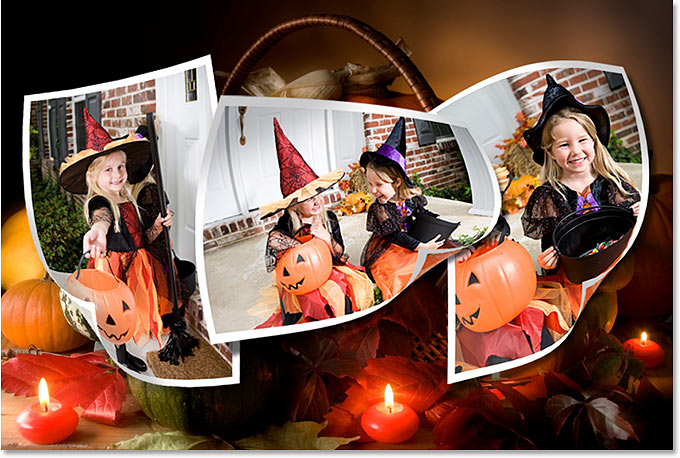

In this Photoshop effects tutorial, were going to learn how to create a collage of "warped" photos. Now, dont go letting your imagination run wild here. When I say "warped", I dont mean "sick, twisted and shocking", unless of course those are the types of photos you want to use. What Im talking about is photos that well be bending, curling, distorting and reshaping using Photoshops Warp Tool.
I should point out here that the Warp Tool (not to be confused with the Text Warp tool) has only been around since Photoshop CS2, which means youll need Photoshop CS2 or later if you want to follow along using the same techniques Ill be using in this tutorial. There are more complicated and time-consuming ways to create the same effect in older versions of Photoshop, but the Warp Tool makes things incredibly easy for us and is also really fun to use, as well see!
For this tutorial, Ill be using three photos in my collage, plus the image Ill be using as the background, for a grand total of four photos (who says math isnt easy?). You, of course, can use as many photos as you like. Since Halloween is fast approaching (at the time Im writing this), I thought Id go with a Halloween theme for my collage, but again you can use whichever photos you like.
Heres the final effect well be working towards:
Lets get started!
Step 1: Open The First Photo You Want To Add To Your Collage
Open the first photo you want to add to your collage. Well go through all the steps necessary to complete our work on this first photo, and then its simply a matter of repeating the steps with each additional photo you want to add to your collage.
Heres the first photo Ill be using:

Step 2: Rename The Background Layer
With the photo newly opened inside Photoshop, if we look over in the Layers palette, we can see that we currently have one layer, named Background, which contains our image:
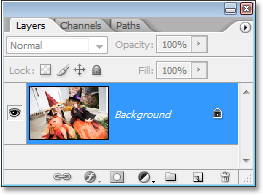
We need to add a new blank layer below this Background layer, but theres a small problem. Photoshop treats the Background layer differently from all other layers (which is why the name is written in italics). Theres things we can do with other layers that we cant do with the Background layer. One of the things we cant do is add any layers below it. The Background layer must always remain the bottom layer in the Layers palette. Fortunately, theres an easy way around this problem. All we need to do is rename the layer to something other than "Background", and the easiest way to do that is by holding down your Alt (Win) / Option (Mac) key and double-clicking directly on the word "Background". Photoshop will automatically rename the layer "Layer 0":
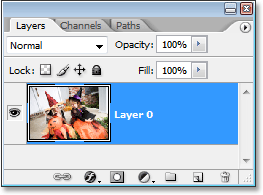
Step 3: Add A New Blank Layer Below "Layer 0"
Now that our Background layer is no longer named "Background", we can add a layer below it. To do that, hold down your Ctrl (Win) / Command (Mac) key and click on the New Layer icon at the bottom of the Layers palette:
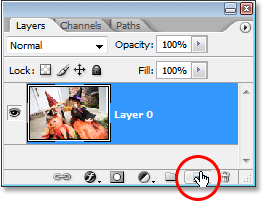
Clicking the "New Layer" icon adds a new blank layer, and by default, Photoshop places new layers above the layer we currently have selected in the Layers palette, but by holding down "Ctrl/Command" as we click on the icon, we tell Photoshop to place the new layer below the currently selected layer. As we can see now in our Layers palette, the new layer, which Photoshop has automatically named "Layer 1", appears below "Layer 0":
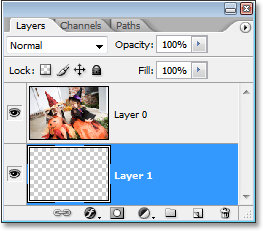
Step 4: Add Additional Canvas Space Around The Image
Since were going to be bending and warping our image, we need to give ourselves a little extra room to work, which means we need to add some extra canvas space around the image. To do that, go up to the Image menu at the top of the screen and choose Canvas Size. This brings up the Canvas Size dialog box. Enter 150 for the Width and Height and change the measurement type for both to percent. Make sure the Relative option is not checked, and make sure the middle square is selected in the Anchor grid:
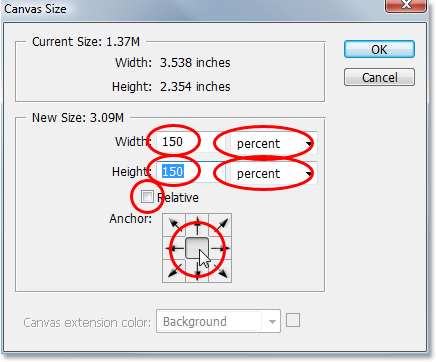
Click OK when youre done, and Photoshop will add the extra canvas space all around the image, giving us lots of room to work:
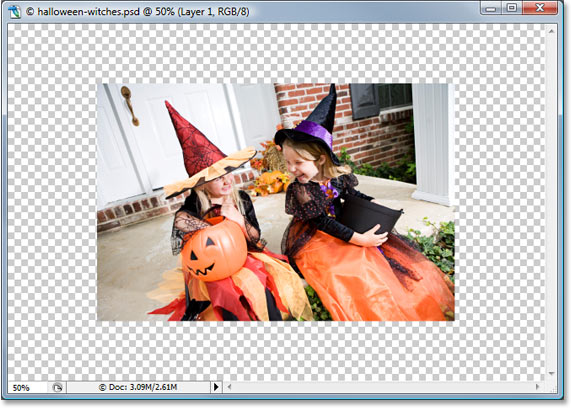
Step 5: Add A White Stroke To The Image
Click on "Layer 0" in the Layers palette to select the layer that contains the original image. Lets add a white photo border around the edge of the image. To do that, go up to the Edit menu at the top of the screen and choose Stroke. This brings up the Stroke dialog box. Im going to enter a value of 20 px (pixels) for my Width, which works well with my image here. You may need to enter a different value depending on the size of the image youre using. Im using a low resolution image for this tutorial, so if youre using a high resolution image, youll need to try a higher width value. The goal here is to simply add what looks like a standard white photo border around the image, which means we also need to select white as our stroke color, so click on the color swatch to the right of the word Color, which brings up Photoshops Color Picker and choose white.
Finally, set the Location option in the middle of the dialog box to Inside so the stroke appears inside the edge of the image:
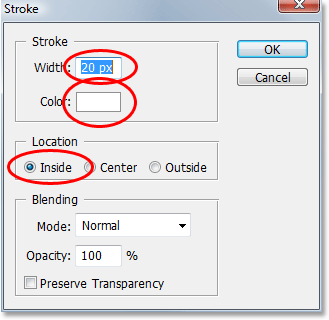
Click OK to exit out of the dialog box and apply the white stroke:
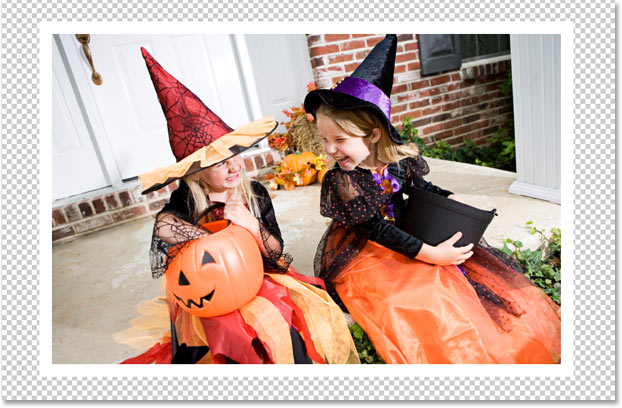
Step 6: Warp The Image With Photoshops Warp Tool
Heres where we get to the fun part. Were going to bend, twist and curl the image using Photoshops Warp Tool. Theres a couple of different ways to access the Warp Tool. One is to go up to the Edit menu at the top of the screen, choose Transform, and then choose Warp, but heres a faster way. Press Ctrl+T (Win) / Command+T (Mac) to bring up Photoshops Free Transform box and handles around the image, then simply click on the Warp icon in the Options Bar at the top of the screen:

You can click on that icon again at any time to switch back and forth between Free Transform and the Warp Tool.
With the Warp Tool selected, youll see a 3x3 grid appear over your image:
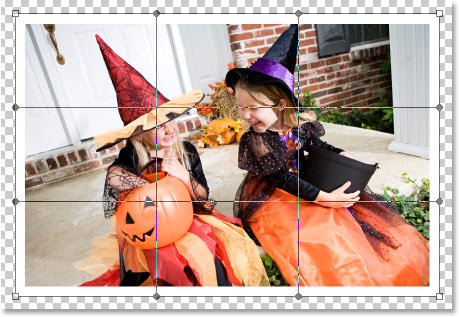
If youve never used the Warp Tool before, it may seem a little confusing at first, but the easiest thing to do is simply play around with it and see what it does, since nothing you do will actually be applied to the image as long as the Warp Tool remains active. In no time at all, youll see just how easy and fun the tool really is. To warp the image from any of the corners, simply click on any of the square corner handles and drag it around with your mouse. Here Im dragging the top left corner outward:
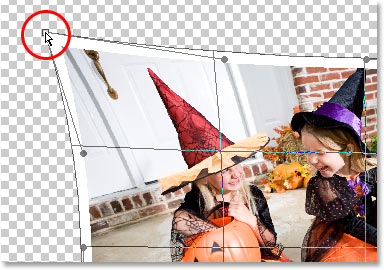
To create a page curl, which is where the Warp Tool really shines, drag any of the corner handles inward. If you drag the corner in far enough, youll actually see what looks like the back of the photo appearing in the corner (its actually a mirror image of the photo, but it still looks pretty cool):
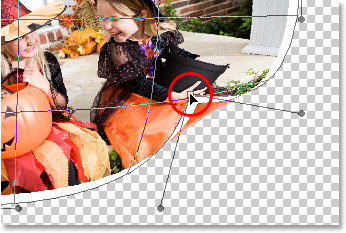
You can also warp the image by dragging the round handles that extend out from the corners:
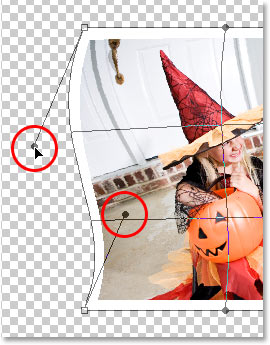
And yet another way to warp the image is by simply clicking anywhere inside of the image and dragging your mouse around to warp it from that spot:
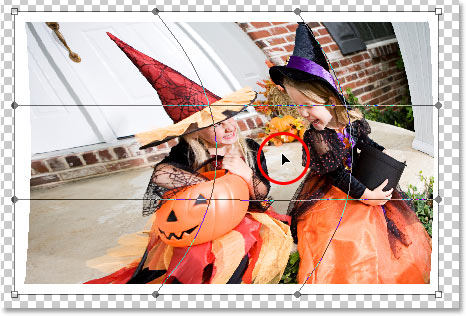
As you can see, Photoshops Warp Tool gives us lots of control and flexibility over how we bend and reshape the image, and for this collage effect were creating, theres no right or wrong way to go about it. Were not trying to create any sort of realistic effect here, although we could if we wanted. All were really going for is something that looks fun, so feel free to play around with your image, warping, stretching, bending, twisting, and curling it anyway you like. The only thing you should try to avoid is warping anyones face, since they may not be too happy when they see what youve done, so try to limit your warp effects to the corners and edges of the photo as much as possible.
Unfortunately, theres no "undo" with the Warp Tool, so if youre not happy with what youve done and want to try again, youll need to press your Esc key to cancel your changes and exit out of the Warp Tool, then go back and start over.
Heres what my image looks like, with the Warp Tool still active, after Ive reshaped the image in a way that works for me (yours may look completely different):
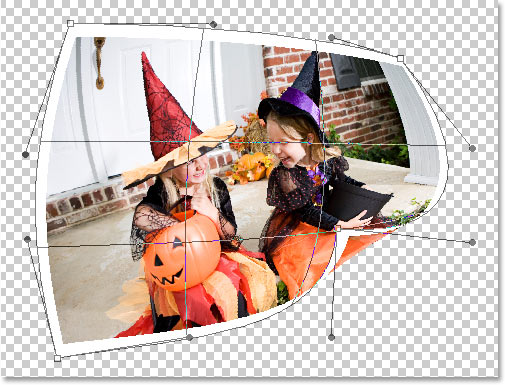
When youre ready to accept your changes, press Enter (Win) / Return (Mac) to have Photoshop apply them to the image.
Step 7: Duplicate The Layer
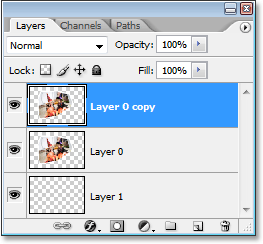
Now that weve warped the image, we need to duplicate it. To do that, with "Layer 0" (the layer that contains our image) selected in the Layers palette, use the keyboard shortcut Ctrl+J (Win) / Command+J (Mac) to duplicate the layer. If we look in the Layers palette now, we can see the newly created copy of the layer, which Photoshop has named "Layer 0 copy", above the other two layers:
Step 8: Fill The Original Image On "Layer 0" With Black
Click back on "Layer 0" in the Layers palette to select it. Then, press the letter D on your keyboard if needed to reset your Foreground and Background colors so black becomes your Foreground color (white becomes your Background color). You can see your current Foreground and Background colors in the color swatches near the bottom of the Tools palette (the swatch in the top left is the Foreground color and the one in the bottom right is the Background color):
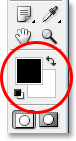
Then, with "Layer 0" selected, use the keyboard shortcut Shift+Alt+Backspace (Win) / Shift+Option+Delete (Mac) to fill the image on the layer with black. You wont see anything happen in your document window and thats because the image on "Layer 0 copy" is blocking what weve done on "Layer 0" below it from view, but if we look at the preview thumbnail for "Layer 0" in the Layers palette, we can see that the image has in fact been filled with black:
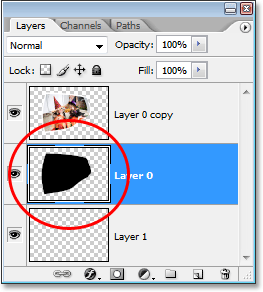
Step 9: Create A Drop Shadow With The Warp Tool
Were going to use the Warp Tool once again, this time to create a drop shadow effect for our image using the area we just filled with black. With "Layer 0" still selected, Im going to access the Warp Tool the same way I did before, by pressing Ctrl+T (Win) / Command+T (Mac) to bring up the Free Transform handles and then clicking on the Warp Icon in the Options Bar. I want the light to appear to be coming from the top left, which means my shadow needs to appear along the bottom right of the image. So with my Warp Tool active, Im going to bend and reshape the black-filled area so it sticks out from under the right and bottom of the image. Again, were not going for absolute realism here, so feel free to exaggerate things a little:
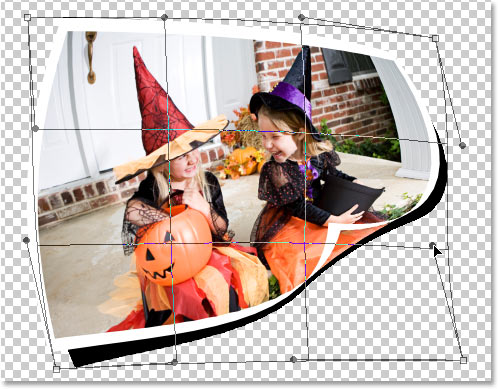
Press Enter (Win) / Return when youre done to accept and apply the changes.
Step 10: Apply The Gaussian Blur Filter
We need to blur the edges of our shadow a little, so go up to the Filter menu at the top of the screen, choose Blur, and then choose Gaussian Blur. When the Gaussian Blur dialog box appears, Im going to enter a Radius value of about 6 pixels to blur the edges of my shadow slightly. Again, you may need to enter a higher value if youre using a high resolution image:
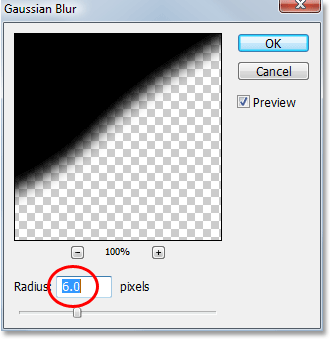
Click OK to exit out of the dialog box when youre done.
Step 11: Lower The Opacity Of The Layer
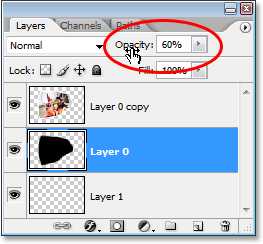
Weve warped our shadow into shape with the Warp Tool and blurred out the edges, but our shadow is much too intense at this point. To fix that, go up to the Opacity option in the top right of the Layers palette and lower the layers opacity to around 60%:
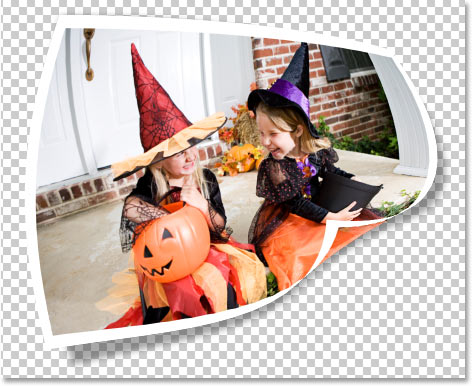
Heres my image after lowering the opacity of the shadow:
Step 12: Add A New Blank Layer Above The Other Layers
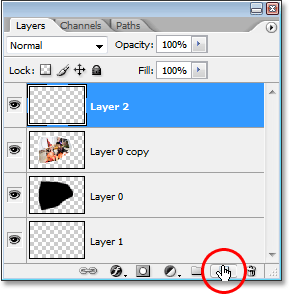
Were almost done, but lets finish things off by adding some subtle highlights and shadows to our photo to enhance the illusion that its really bending and twisting in 3D space. To do that, we first need to add a new layer above the other layers, so click on the top layer ("Layer 0 copy") to select it, then click on the New Layer icon at the bottom of the Layers palette to have Photoshop add a new blank layer at the top, which it automatically names "Layer 2":
Step 13: Change The Blend Mode Of The New Layer To "Hard Light"
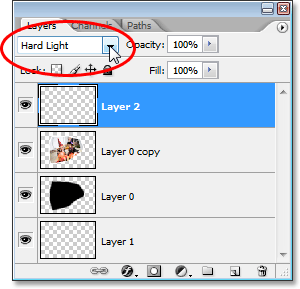
We need to change the blend mode of our new layer. To do that, go up to the Blend Mode options in the top left corner of the Layers palette. By default, the layer is set to the "Normal" blend mode. Click on the down-pointing arrow to the right of the word "Normal" and select Hard Light from the list:
Step 14: Lower The Opacity Of The Layer
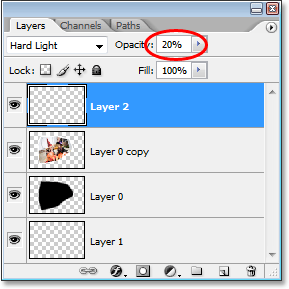
Were going to use this layer to paint in some highlights and shadows with Photoshops Brush Tool, but before we do, we need to lower the opacity of this layer quite a bit. We want very subtle highlights and shadows, so go over to the Opacity option in the top right of the Layers palette and lower the opacity all the way down to about 20% to start with. You may need to raise or lower it slightly when youre done:
Step 15: Load A Selection Around The Image
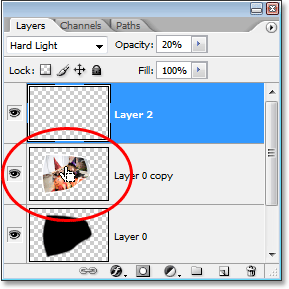
Before we begin painting, lets make sure we paint "inside the lines" so-to-speak, so were not painting over any of the transparent areas around the image. To do that, hold down your Ctrl (Win) / Command (Mac) key and click directly on the preview thumbnail for "Layer 0 copy" (the layer that contains our image) in the Layers palette:
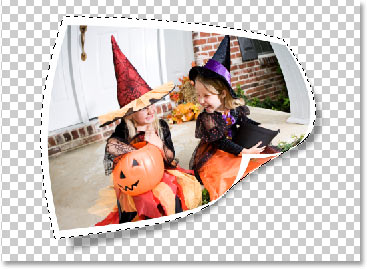
This loads a selection around the image in the document window:
Step 16: Select The Brush Tool
Select Photoshops Brush Tool from the Tools palette, or simply press B on your keyboard to select it with the shortcut:
Step 17: Paint With Black To Add Shadows To The Image
With the Brush Tool selected and black as your Foreground color, paint over a few areas in the image to add subtle shadows, giving the image a bit more of a 3D look to it. Resize your brush as needed by pressing the left bracket key on your keyboard to make the brush smaller or the right bracket key to make it larger. To control the hardness of the brush edges, hold down your Shift key and press the left bracket key a few times to soften the edges, or hold down Shift and press the right bracket key a few times to make the brush edges harder.
You can also Right-click (Win) / Control-click (Mac) anywhere inside the document to bring up the Brush Tool dialog box where you can adjust the brush diameter and hardness with slider controls at the top:
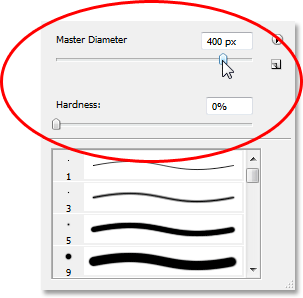
Then simply paint over parts of the image to add some shadows. Thanks to the selection weve loaded around the image, we dont have to worry about accidentally painting in the area outside of the photo. The only area we can paint over is the area inside the selection.
If you make a mistake or youre just not happy with how you painted over an area, either press Ctrl+Z (Win) / Command+Z (Mac) to undo your last brush stroke, or press E on your keyboard to switch to Photoshops Eraser Tool, erase over the mistake, then press B to switch back to your Brush Tool and continue painting. Heres my image after painting in some shadows in the top left and right corners, as well as over the page curl in the bottom right
Go to link Download

Monday, April 24, 2017
Color Grid Photo Display Effect With Photoshop Tutorial
Color Grid Photo Display Effect With Photoshop Tutorial
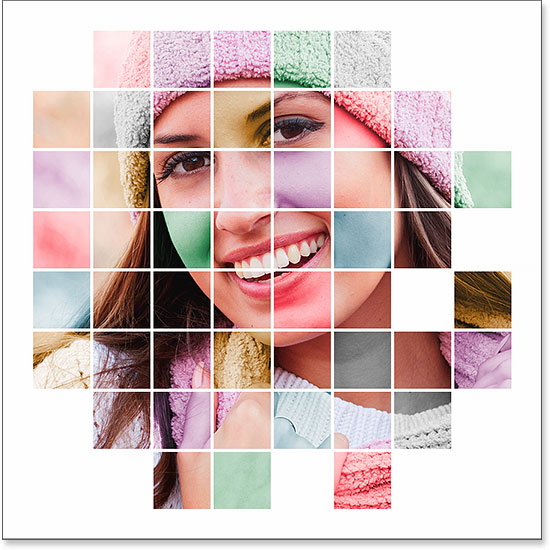
In this photo effects tutorial, we’ll learn how to display a photo in a grid of randomly colored squares! We’ll use Photoshop’s built-in grid feature as a guide for setting up the initial spacing, then well turn it into a pixel-based grid using a couple of Photoshops rarely-used selection tools. We’ll see how to easily select different squares in the grid with the Magic Wand Tool, how to colorize them with adjustment layers and blend modes, and finally, how to adjust the appearance of the grid itself using layer styles!
This version of the tutorial has been updated for Photoshop CS6 and is also fully compatible with Photoshop CC (Creative Cloud). For CS5 and earlier, youll want to check out our original Color Grid Design tutorial.
Heres the image Ill be working with (woman with winter clothing photo from Shutterstock):

And heres how the color grid design will look when were done. Of course, you can use whichever colors you like for your effect. This is just one example:
Lets get started!
Step 1: Create A New Photoshop Document
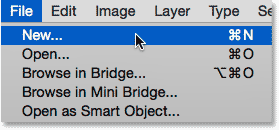
Let’s begin by creating a new document for the grid. Go up to the File menu in the Menu Bar along the top of the screen and choose New:
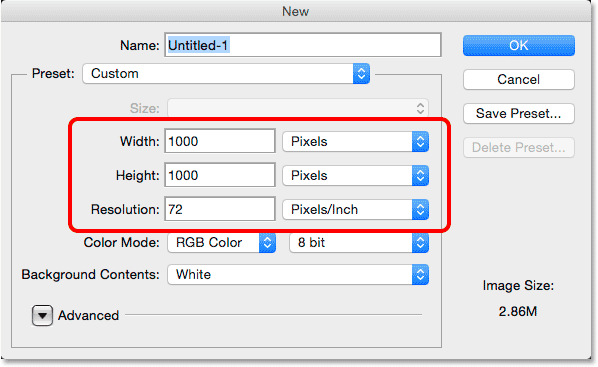
This opens Photoshop’s New dialog box. This effect works best with a square-shaped document, so for this tutorial, Ill set both my Width and Height values to 1000 Pixels. Of course, feel free to replace my values with whatever dimensions you need, but again, youll want a square document for the best results. Im not planning on printing this (it will be strictly for on-screen viewing) so theres no need to worry about the Resolution value (Ill leave it set to its default of 72 pixels/inch), but if you are creating this effect for print, you’ll most likely want to create a document larger than 1000 x 1000 pixels and youll want to set your resolution to around 240 pixels/inch or higher. Click OK when you’re done to close out of the dialog box. The new document will appear on your screen:
Step 2: Turn On Photoshops Grid
Next, well turn on Photoshops built-in grid so we can use it as a guide for creating our pixel-based grid. To turn the grid on, go up to the View menu at the top of the screen, choose Show, then choose Grid:
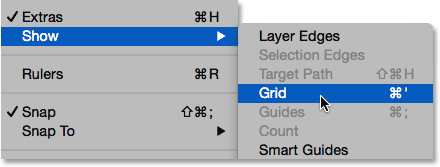
The grid will appear as an overlay on top of your document. Well make some changes to the appearance of the grid next:
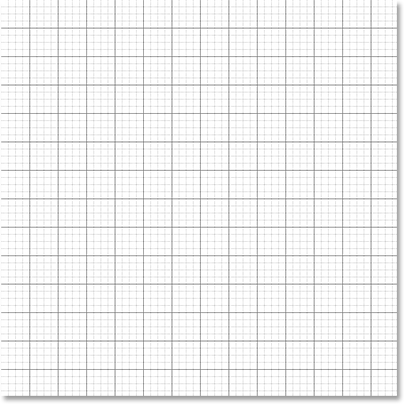
Step 3: Adjust The Number Of Grid Lines
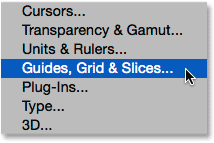
We can adjust the number of lines and sections in the grid using Photoshops Preferences. If youre running Photoshop on a Windows PC, go up to the Edit menu at the top of the screen, choose Preferences, then choose Guides, Grid & Slices. On a Mac, go up to the Photoshop menu, choose Preferences, then choose Guides, Grid & Slices:
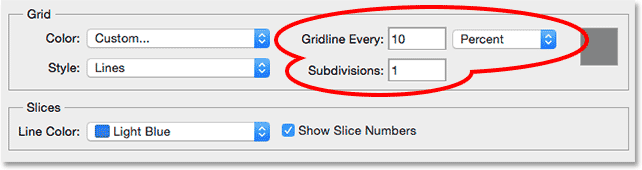
This opens the Preferences dialog box set to the Guides, Grid and Slices preferences. In the Grid section, change the Gridline Every option to 10 Percent, which will give us a 10x10 grid, and change the Subdivisions value to 1 to prevent the grid from being subdivided into smaller sections. Keep an eye on the grid in the document and youll see a live preview of the changes as youre making them:
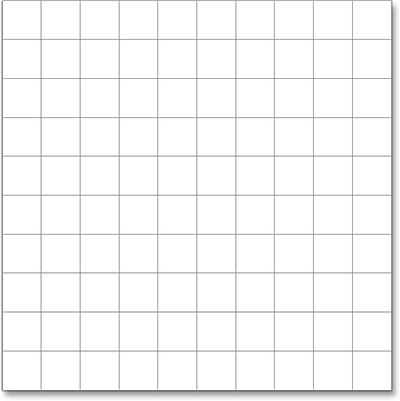
Click OK when youre done to close out of the Preferences dialog box. You should now see a grid 10 sections wide and 10 sections tall. Its important to note that this grid isnt actually part of the document. Its simply a visual guide that well be using to help us make our own pixel-based grid, as well be doing in a moment:
Step 4: Add A New Blank Layer And Name It "Grid"
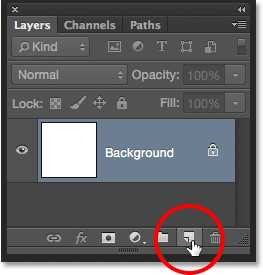
Lets add a new blank layer to hold the pixel-based grid were about to create. Press and hold the Alt (Win) / Option (Mac) key on your keyboard and click the New Layer icon at the bottom of the Layers panel:
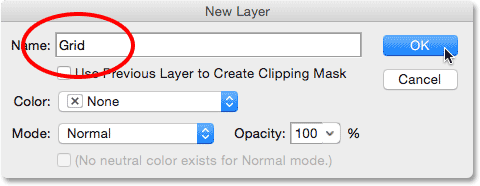
This opens the New Layer dialog box, giving us a chance to name the new layer before its added. Name the layer "Grid", then click OK to close out of the dialog box:
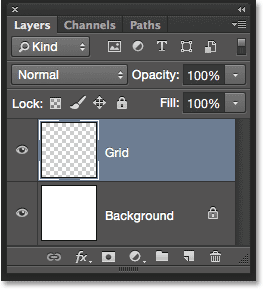
Nothing will happen in the document itself, but we can see in the Layers panel that Photoshop has added the new "Grid" layer above the Background layer:
Step 5: Select The Single Row Marquee Tool
To create our grid, well use two of Photoshops very basic and rarely-used selection tools - the Single Row Marquee Tool and the Single Column Marquee Tool. Well start with the Single Row Marquee Tool. By default, both of these tools are nested behind the Rectangular Marquee Tool, so click and hold on the Rectangular Marquee Tool near the top of the Tools panel until a fly-out menu appears showing you the other tools available in that same spot, then choose the Single Row Marquee Tool from the menu:
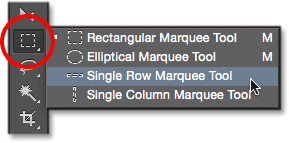
Step 6: Click On Each Horizontal Grid Line
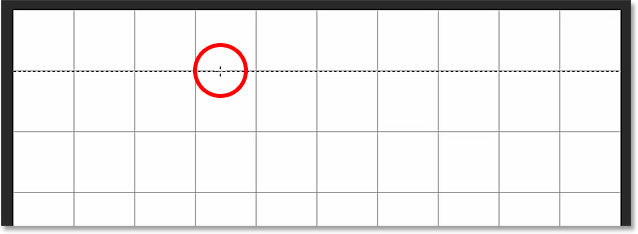
As it’s name implies, the Single Row Marquee Tool will select a single horizontal row of pixels in the document. Thats it, thats all it does. To use it, we just need to click anywhere in the document and Photoshop will automatically select the pixel we clicked on, plus every other pixel in that row from left to right. We’re going to use the tool to convert the horizontal grid lines into a series of selection outlines. First, move your cursor directly over the top horizontal grid line, then click with your mouse. You’ll see a 1-pixel thick selection outline appear along the grid line. Ive circled the spot where I clicked but clicking anywhere on the line will give you the exact same result. If you notice that your click wasnt directly over the grid line, just press Ctrl+Z (Win) / Command+Z (Mac) on your keyboard to undo it and try again:
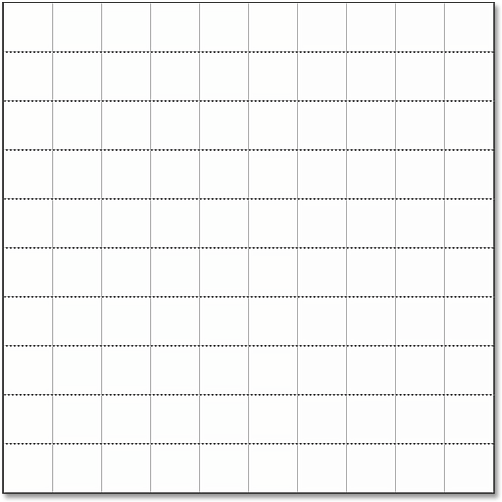
Next, well add the rest of the horizontal grid lines to our selection. Press and hold the Shift key on your keyboard and click on the next grid line below it. This will select a second horizontal row of pixels, and because we had the Shift key held down, Photoshop will add this second selection to the first. Continue holding down your Shift key while clicking on the rest of the horizontal grid lines until a selection outline appears along each of them. When youre done, you should see nine selection rows in total. Make sure you keep your Shift key held down as you click on each one, otherwise you’ll just replace the previous selection with the new one:
Step 7: Switch To The Single Column Marquee Tool
We need to do the same thing now with the vertical grid lines, which means we need to switch to the Single Column Marquee Tool. Click and hold on the Single Row Marquee Tool in the Tools panel (it will appear where the Rectangular Marquee Tool icon appeared earlier) until the fly-out menu appears, then choose the Single Column Marquee Tool from the menu:
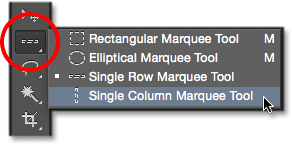
Step 8: Click On Each Vertical Grid Line
The Single Column Marquee Tool acts the same way as the Single Row Marquee Tool, the only difference being that it selects columns of pixels (top to bottom) rather than rows, with each column being 1 pixel wide. Press and hold your Shift key and click on each of the vertical grid lines from left to right until theyre all selected. When youre done, you should see selection outlines along every grid line, both horizontal and vertical:
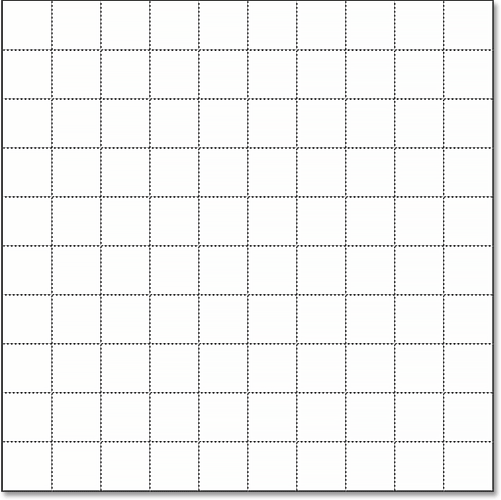
Step 9: Fill The Selection With Black
Well create our grid by filling the horizontal and vertical selections with black. Go up to the Edit menu at the top of the screen and choose Fill:
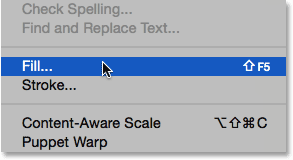
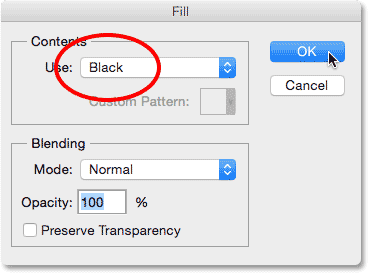
This opens Photoshops Fill dialog box. Set the Use option at the top to Black, then click OK:
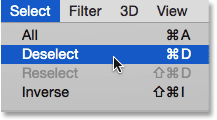
Photoshop fills the selection with black, although it may be hard to see with the selection outlines and Photoshops own grid in the way. To remove the selection outlines (since we dont need them anymore), go up to the Select menu at the top of the screen and choose Deselect:
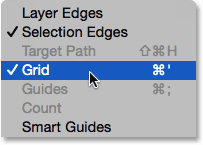
Then, to turn off Photoshops grid, go up to the View menu, choose Show, then once again choose Grid. A checkmark to the left of the word Grid means its currently turned on. Selecting it again will remove the checkmark and turn the grid off:
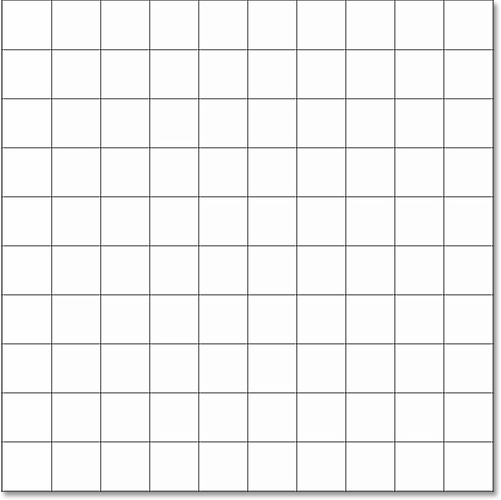
With the selection outlines and Photoshops grid removed, we can see our black grid in the document:
Step 10: Open The Photo You Want To Display In The Grid
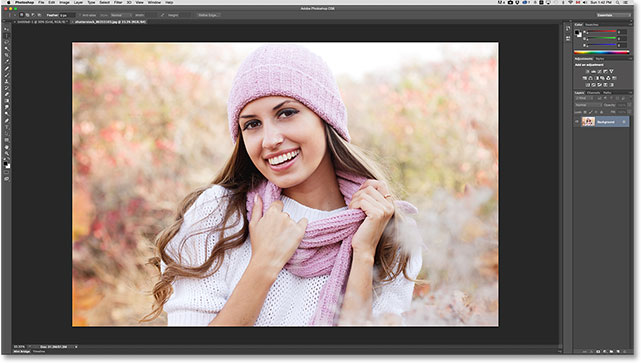
Open the photo youll be displaying inside the grid. The photo will open in its own tabbed document. Heres the photo Im using:
Step 11: Select And Copy The Photo
At the moment, our grid is in one document and our photo is in another. We need to move the photo into the same document as the grid. To do that, first select the photo by going up to the Select menu at the top of the screen and choosing All:
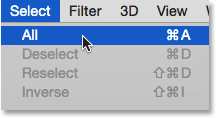
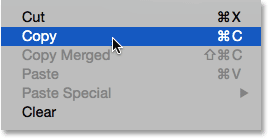
A selection outline will appear around the edges of the photo. Then, go up to the Edit menu at the top of the screen and choose Copy:
Step 12: Switch Over To The Grid Document
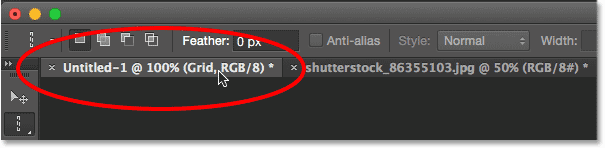
Switch over to the grid document by clicking on its tab just below the Options Bar at the top. In my case, the document is named simply "Untitled-1":
Step 13: Select The Background Layer
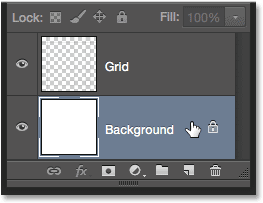
With the grid document open, click on the Background layer in the Layers panel to select it. This way, when we paste the photo into the document, Photoshop will place it on a new layer directly between the Background layer and the Grid layer:
Step 14: Paste The Photo
Go up to the Edit menu, choose Paste Special, then choose Paste in Place:
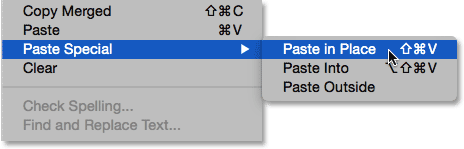
Photoshop pastes and centers the photo into the grid document. In my case (and most likely yours as well) the photo will need to be resized, but well fix that next:
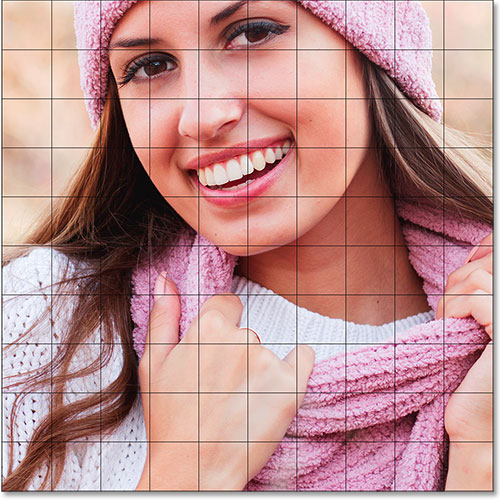
If we look in the Layers panel, we see that Photoshop has added the photo on its own layer between the Background and Grid layers, just as we planned:
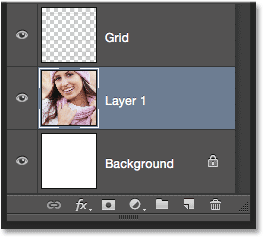
Unfortunately, Photoshop gave the new layer a generic name ("Layer 1"), so before we continue, lets rename it. Double-click directly on its name to highlight it, then enter "Photo" as the new name. Press Enter (Win) / Return (Mac) on your keyboard when youre done to accept the name change:
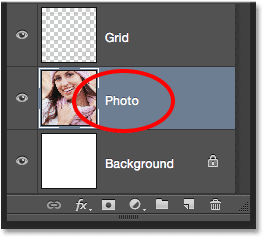
Step 15: Convert The Photo Layer Into A Smart Object
In a moment, well resize the photo so it fits better within the grid, but before we do, lets quickly convert its layer into a Smart Object. That way, if we decide to resize it again later, we wont lose any of the photos image quality. With the Photo layer selected, click on the small menu icon in the upper right corner of the Layers panel:
 Go to link Download