Tuesday, June 6, 2017
Collection of Cool Google tricks 3 is the Best
Collection of Cool Google tricks 3 is the Best


Google is the Proclaimed king among all search engines present on the internet. Among all the web based search engines, Google stands out because of its high speed and simplicity.
Everyone is familiar with the web applications provided by Google. Some of these are the Gmail, Google Drive, Google app store and a lot more. But little do people know about some very handy Google tricks that come along with this impeccable search engine.
 Tags:- Tags
Top 10 Cool Google tricks of all times:
Below are Some Cool Google Tricks that i have Collected. Do not Forget to Check Bonus at the End of the Post. Enjoy !!!
1. Definition:
There is no longer the need to type a word and then visit dictionaries online to find its meaning. Using this trick, all you need to do is simply write “define” followed by the word whose meaning you want to know, This Cool Google tricks Come very handy if you use it Effectively.
You will be amazed to see that the meaning of the word, along with its synonym and antonym will be displayed on the search engine. For instance, type “define reach” and then press enter. The meaning of the word will get displayed on your screen.
2. Phone number lookup:
It is now possible to trace mobile number by simply typing the full number along with the area code. This will display the address as well as the name of the person under whose name the number is registered.(Doesn’t Work anymore)
This was the Most helpful thing i have seen from all the Google Tricks. Unfortunately its not working anymore. Check the below list.
3. Atari Breakout:
Only Few Know about this trick and so I think this is the Best Trick amongst all the Google Tricks. All you have to do is Type Images.google.com in the address bar of your browser to open up google images. Now type “Atari Breakout” and Press Enter.
You will Definately Be amazed to see what happens next. It is Only Fair to Add this Trick in my list of Cool Google Tricks.
Note: I am not Responsible if you waste over an hour in playing this game. J/K
4.Translate:
The “Google language tool” comes very handy while translating text, words, a fully fledged web page or document on the internet.
5.Find movies and weather:
All you need to do is type “movies” or “weather” in the search box followed by the area code or name of the state in order to display corresponding information regarding it. For instance, if you type “weather 12345”, weather conditions of the corresponding location will be displayed.
Also, on typing “movies 12345”, the details of all the movies currently running at that place along with number of shows will get displayed. this is another Cool Google trick then i like and use.
6.Paged linked to you:
You can now find the web pages and links that are connected with your blog or website. Simply type “link” followed by the URL of your website and you will get a list of all the pages connected with your website.
7.Tracking airline flights and packages:
This is another handy Google trick. You can now find the arrival time and status of a flight by simply entering the name of the airline and corresponding flight number.
8.Calculator:
You can use the Google search engine as a real time calculator as well. For instance, if you will type 25+25 in the search box, 50 will get displayed.
9.Stocks:
All you need to do is type the stock symbol on Google and you will get information about stock rates, links as well as charts. For instance, to know about the stock details of “Microsoft”, you have to write “msft” on Google.
10.Finding PDF results only:
To get results matching only a certain file type, simply type “fileType:” after your search. Online manuals can be found using this trick from Google.
11.Local search:(Bonus 1)
You can now find local restaurants and other landmarks with this trick. One of the best Google tricks according to me. Simply go to “Google visit” and type the name of the area and the place which you want to find. It is capable of displaying all local landmarks and places.
12. Use Google as Timer (Bonus 2)
You Can use Google Search to Set Timers too. If you want to Complete Certain Task in so and so minutes or hours then You can simply start Timer. This is one of the Most amazing Google Tricks that very few people are aware of. All you have to do is Open a new tab in your favourite Browser and Enter the Term “Set timer 10 minutes” and click enter.
As soon as you Hit enter you will see google timer is already started. In this Example i have used 10 minutes but you can always change it to anything.
For Eg: if you wish to set a Timer for 1 and half hour then you will enter thie term “Set Timer 90 Minutes” and Hit Enter.
With this it ends my list of Cool Google tricks, If i am Missing out on any Usefull Trick then please feel free to Comment.
Go to link Download

Monday, May 22, 2017
Cara Reset Firefox dan Google Chrome Ke Pengaturan Awal
Cara Reset Firefox dan Google Chrome Ke Pengaturan Awal


Go to link Download
Monday, April 24, 2017
Cara Menghilangkan Tag Judul Duplikat di Webmaster Tools Google
Cara Menghilangkan Tag Judul Duplikat di Webmaster Tools Google
Cara Mengetahui Tag Judul Duplikat di Webmaster Tools Google
CARA PERTAMA :
1. Buka Webmaster Tools Google
2. Klik Tampilan Penelusuran
3. Pilih Penyempurnaan HTML dan seperti gambar dibawah ini ada 16 tag judul duplikat pada blog saya.
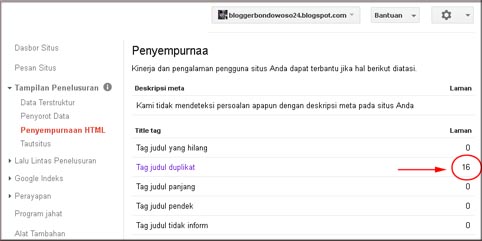
4. Klik tulisan "Tag Judul Duplikat" seperti gambar dibawah ini dengan panah warna merah yang harus dihilangkan / dihapus.
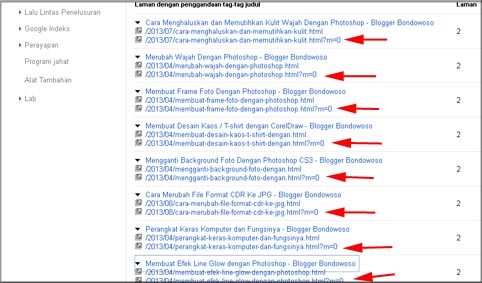
Cara Menghilangkan Tag Judul Duplikat di Webmaster Tools Google :
1. Pada Webmaster Tools Google => Klik Tampilan Penelusuran => Pilih Penyempurnaan HTML
2. Klik Tag Judul Duplikat. Seperti pada gambar diatas silahkan copy ke notepad URL dengan tanda panah merah
3. Kembali ke "Google Indeks" dan pilih "Hapus URL"
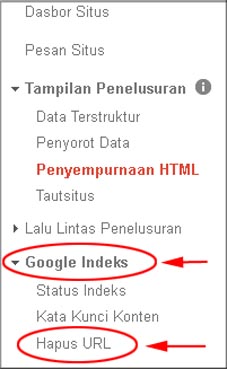
4. Lalu pilih "Buat permintaan penghapusan baru" dan masukkan URL yang anda copy tadi ke notepad dan klik tombol "Terus"
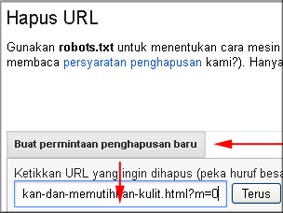
5. Maka akan tampil gambar seperti dibawah ini dan klik "Kirim Permintaan"
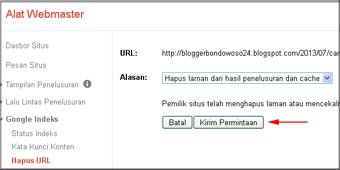
6. Lakukan hal yang sama seperti contoh diatas untuk menghapus URL yang lainnya.
7. Nah anda tinggal menunggu beberapa hari dari tim Google untuk penghapusan URL yang anda ajukan.
Itulah cara yang pertama, sekarang beralih ke cara yang kedua untuk menghapus tag judul duplikat di Webmaster Tools Google
CARA KEDUA :
1. Pada Dasboard Webmaster Tools Google => pilih Perayapan => pilih Parameter URL
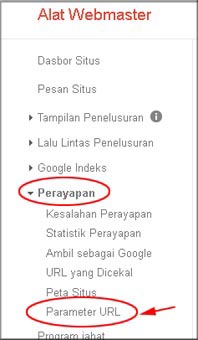
2. Lalu klik "Tambahkan Parameter" dan isi dengan huruf m
3. Pada kotak "apakah parameter ini mengubah konten laman yang dilihat pengguna" silahkan pilih "Tidak mempengaruhi halaman konten lama )misalnya melacak pengunaan"
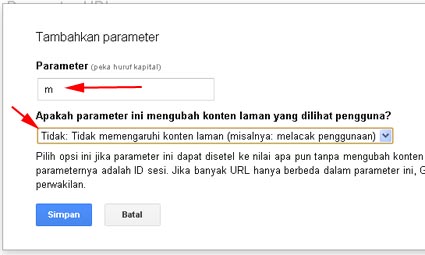
4. Klik Simpan
Go to link Download
Saturday, April 8, 2017
Cara Setting Target Geografis di Webmaster Tools Google
Cara Setting Target Geografis di Webmaster Tools Google
Bagaimana Cara Mengatur Target Geografis pada Webmaster Tools Google ?
Untuk melakukan pengaturan / setting target geografis yaitu :
1. Kunjungi Webmaster Tools Google
2. Setelah masuk ke Webmaster Tools Google lalu klik url blog anda, seperti contoh ini :
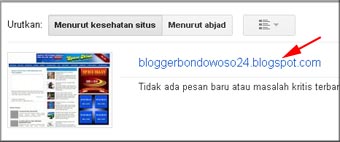
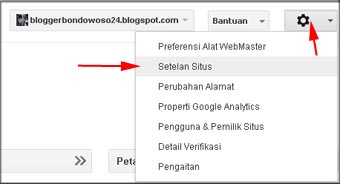
3. Lihat sebelah kanan ada gambar roda bergerigi. Klik saja gambar roda tersebut lalu pilih "Setelan Situs"
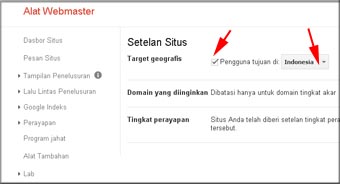
4. Centang kotak kecil pada Target geografis dan pilih negara Indonesia
Go to link Download
Sunday, March 26, 2017
Client for Google Translate Tested Working
Client for Google Translate Tested Working

Client for Google Translate — this is a free translator for Windows
which enables the fast translation of text in the majority of applications, such as Outlook, MS Word, Internet Explorer, and Firefox using the Google Translate service.
Upgrade to Pro:
Learning foreign words
Learner - is a desktop gadget for effective learning foreign words and phrases. With Learner you can improve your memory skills and improve foreign vocabulary at the same time.
Supports Wikipedia
Client for Google Translate Pro enables you to obtain various terms and other useful information from Wikipedia as quickly and easily as the text translation. You simply need to select the term and click on the W icon. A Wikipedia extract will open in a pop-up window under the cursor!
Supports free XDXF dictionaries
XDXF (XML Dictionary eXchange Format) – a project comprising all of the existing open dictionaries.
With the dictionaries installed you can not only obtain the full-text translation, but also dictionary definitions of the selected text (even if there is no internet connection). The translator supports transcription if there is one in the dictionary base. The maximum number of installed dictionaries is not specified.
Homepage: http://translateclient.com
Downloads Link
Full Software | Click Here
Keygen
Full Software | Click Here
Go to link Download
Monday, February 27, 2017
Cara Pasang Widget Google
Cara Pasang Widget Google
Sebagian besar pengguna internet pasti sudah tahu apa itu Google+. Google+ merupakan salah satu social network yang dibuat oleh Google. Pada awal pembuatannya, Google+ diciptakan untuk menyaingi kepopuleran Facebook sebagai social network yang paling banyak digunakan orang di dunia.
Manfaat Google+ bagi blog
Penggunaan Google+ sangat bermanfaat bagi blogger dalam memajukan kinerja blog miliknya. Anda bisa menggunakan Google+ untuk membangun sebuah komunitas yang pada akhirnya dapat digunakan sebagai media potensial dalam mempromosikan blog. Selain itu, Google juga pernah memberitahukan resep jika semakin banyak rekomendasi kepada publik di Google melaui tombol Google+ untuk sebuah halaman blog maka peringkat halaman blog tersebut untuk muncul di Search Engine Result Page (SERP) akan semakin tinggi. Sangat bermanfaat bagi SEO bukan?Nah, untuk itu ada baiknya Anda memiliki banyak teman pada jaringan Google+ guna mendongkrak kinerja blog yang dimiliki. Salah satu cara termudah untuk mendapatkan banyak teman dalam jaringan Google+ yaitu menampilkan widget Google+ pada blog yang Anda miliki. Pengunjung blog akan mudah melihat, mengetahui, dan mengenali keberadaan akun Google+ Anda. Dengan demikian, peluang untuk mendapatkan banyak teman dalam jaringan Google+ pun semakin besar.
Cara memasang widget Google+ pada blog
Bagaimana cara memasang widget profil Google+ pada halaman blog milik Anda? Mudah. Ikuti saja langkah-langkah yang saya berikan berikut ini.1. Pastikan Anda sudah mendaftar dan memiliki akun di jaringan Google+. Usahakan email yang digunakan untuk daftar Google+ dan daftar blogspot adalah sama.
2. Masuk akun blogger > dasbor > tata letak > tambahkan gadget > pilih pengikut Google+.
3. Atur konfigurasi tampilan pengikut Google+ sesuai keinginan > simpan.

Agar jumlah pertemanan cepat bertambah, tempatkan widget tampilan pengikut Google+ Anda tersebut pada bagian halaman blog yang strategis seperti sidebar bagian atas. Selain itu, beri juga kalimat persuasif berisi ajakan kepada para pembaca untuk menambahkan Anda ke dalam lingkaran pertemanan mereka masing-masing. Mudah bukan?
Silakan berkomentar. Semua masukan, tanggapan, dan pertanyaan bisa Anda bagikan kepada saya dan pembaca lain pada komentar di bawah ini.
Go to link Download
Saturday, February 18, 2017
Client for Google Translate Pro
Client for Google Translate Pro
 Google Translate is one of the most popular services of computer-aided translation, however, using an online-translator for text translation is convenient: you have to launch the browser, open the website, copy and paste the text, select the language ... Too time-consuming!
• Immediate translation of the selected text
• More than 50 languages, automatic language detection
• Shortcut keys to open the translator
• "Suggest a better translation" function
• Automatic checking for updates and news
Application to translate between languages:
Install notes:
The program does not have a digital signature, the AV should be allowed to install and run.
- Install the program does not run
- Copy the contents of Crack folder to the root directory of the program
- The default directory is C: File / Program / Client Translate

Go to link Download
Saturday, December 17, 2016
CARA MENGHAPUS BABYLON DARI GOOGLE CHROME
CARA MENGHAPUS BABYLON DARI GOOGLE CHROME
Bagaimana cara menghapus, menghilangkan dan uninstal babylon browser di google chrome kita. Kenapa search engine yang satu ini terkesan memaksakan. Sudah bikin kita kadang jengkel, apalagi menyusahkan. Padahal sebelumnya kita tidak merasa menginstal atau sengaja kita benar – benar ingin pasang search engine Babylon ini. Tapi memang tanpa kita sadari pada saat kita habis download sesuatu akhirnya search engine babylon ini ngikuti dan terinstal tanpa kita sadari.
Makanya hati – hati kalau kita mau download sesuatu, jangan mudah dan gampang percaya dengan kata – kata yang seolah itu adalah sesuatu yang kita cari dan ternyata malah bikin hancur software komputer kita.
Nah dalam hal ini saya ingin berbagi dengan kamu semua, bagaimana caranya kita ingin menghapus dan menghilangkan yang namanya mesin pencari Babylon dari perambaan mesin pencari kita google crome.

 Caranya sangat mudah sekali, yaitu langkahnya adalah sbb :
- Kita klik icon kunci inggris di pojok kanan atas.
- Setelah itu masuk ke menu pilihan.
- Kemudian kamu amati dan kamu setting, di menu beranda, penulusuran, dst. nah kalau ketemu tulisan babylon kamu REMOVE dia saja.
- Setelah semua kamu setting dan kamu pastikan Babylon sudah tidak ada lagi di media setting tadi, kemudian kamu restart
Go to link Download